Want to create searchable tables in Bricks Builder websites? Great, you’ve landed on the right page!
Tables are a great way to organize information on a website. You can use them to display product details, pricing plans, employee directories, course lists, or other information that visitors need to find quickly.
But what happens when your table contains 50, 100, or even 500 rows? Visitors may have to scroll through the entire table to find what they are looking for. This can make your website harder to use, especially on pages with lots of information.
A searchable table solves this problem. It adds a search box that lets visitors type a word or phrase to quickly find matching information.
If you are building a website with Bricks Builder, you can create searchable tables using the Dynamic Table element from Max Addons for Bricks Builder. It lets you display data from different sources and add useful features such as search, sorting, and pagination.
In this guide, we will walk through the complete process of creating a searchable table in Bricks Builder. We will start by adding the Dynamic Table element, configuring the table data, enabling the search form, and customizing its appearance.
You do not need any coding knowledge to follow this tutorial.
Let’s get started!
What Is a Searchable Table?
A searchable table is a table that includes a search box. Visitors can type a keyword into this box to find specific information without checking every row manually.
For example, let’s say you have an online store with a table containing 100 products. Each row displays the product name, category, price, and availability.
Without a search feature, visitors need to scroll through the entire table to find a particular product. With a searchable table, they can type the product name into the search box and quickly locate the matching entry.
Here is another example. Suppose you have created a course directory that lists course names, instructors, categories, and prices. A search field makes it easier for visitors to find a particular course.
Searchable tables are useful for many types of websites, including:
- Product catalogs and WooCommerce product listings.
- Pricing comparison tables.
- Employee or team directories.
- Course and training directories.
- Event schedules and resource libraries.
- Large lists of services, features, or other information.
The main benefit is simple: visitors can find the information they need in the large data tables without wasting time.
Why Create Searchable Tables in Bricks Builder?
Bricks Builder is a visual website builder for WordPress. It allows you to create website layouts using elements and styling controls, rather than writing every part of the page manually.
However, creating a table with a search feature requires more than just displaying rows and columns. You also need functionality that lets visitors search the information inside the table.
This is where the Max Addons Dynamic Table element for Bricks Builder can help.
It allows you to create tables using Custom Data, WordPress Queries, or Google Sheets. You can also add a search form, make columns sortable, and divide large tables into smaller pages using pagination.
If you are creating a product comparison page, you can display product names, prices, and features in a table. Visitors can then search for a particular product instead of reading every row.
You can also use the same element to build directories, resource lists, and other data-heavy pages.
The best part is that you can manage the table in the Bricks Builder editor, which makes the process easier for beginners.
What You Need Before Getting Started
Before creating your searchable table, make sure you have the following:
- A WordPress website
- Bricks Builder
- Max Addons for Bricks Builder
How to Create Searchable Tables in Bricks Builder
Once everything is ready, you can start building your table.
Step 1: Activate the Dynamic Table Element
First, make sure the Dynamic Table element is enabled in Max Addons.
Log in to your WordPress dashboard and navigate to: Bricks >> Max Addons >> Elements
You will see a list of elements available in Max Addons.
Find the Dynamic Table element in the list. If it is already active, you can move to the next step. Otherwise, click the toggle button to activate it and then click Save Changes.
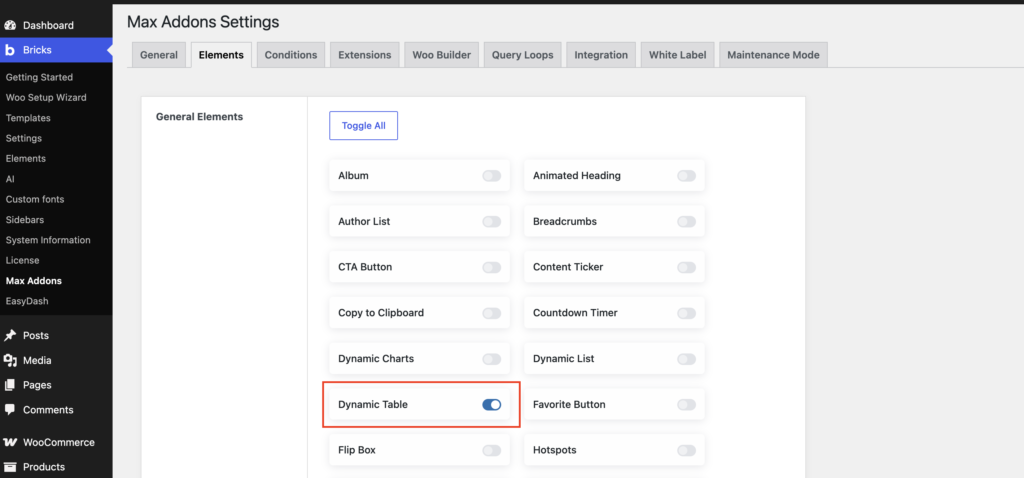
That’s it! The Dynamic Table element is now ready to use in Bricks Builder.
Step 2: Create a New Page in WordPress
Now, let’s create a page to add our searchable table.
Open your WordPress dashboard and navigate to Pages >> Add New.
If you already have a page where you want to display the table, you can use that page instead. There is no need to create a new one.
Step 3: Open the Page in Bricks Builder
Once your page is ready, open it in Bricks Builder. Click EDIT WITH BRICKS to launch the visual editor.
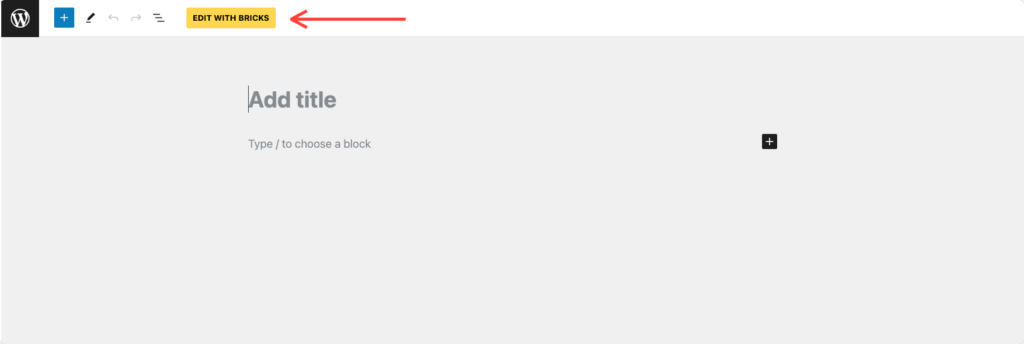
Bricks Builder organizes page content using elements and containers. You can add elements, arrange them on the page, and customize their appearance using the editor controls.
For this tutorial, we will add a section to hold our table.
Click the + icon in the Bricks Builder editor and add a Section or the appropriate layout container for your page.
You can also add a heading above the table, such as Find the Right Product, followed by a short description explaining what visitors can search for.
This small addition helps visitors understand how to use the table.
Step 4: Add the Dynamic Table Element
Now that your page layout is ready, let’s add the table.
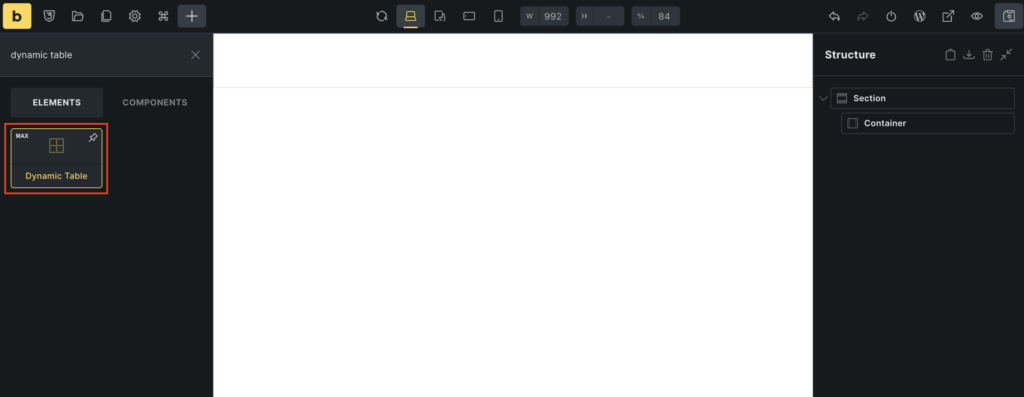
In the Bricks Builder editor, click the + icon to open the element panel. Type Dynamic Table into the search bar.
Look for the Dynamic Table element provided by Max Addons and add it to your page. Make sure the element has the MAX label, so you know you have selected the correct element.
Once the element is added, a table structure will appear in the editor.
Select the table to open its settings. You will see two main tabs:
- Content: This tab contains the settings for table data, search, sorting, pagination, and other functionality.
- Style: This tab lets you customize the table’s appearance, including colors, spacing, typography, borders, and buttons.
We will use both tabs to create and customize our searchable table.
Step 5: Choose a Data Source for Your Table
Before adding the search feature, you need to decide where your table’s data will come from.
Select the Dynamic Table element and open the Content tab. In the General section, find the Source option.
You will see three data source options: Custom, Query, and Google Sheets.
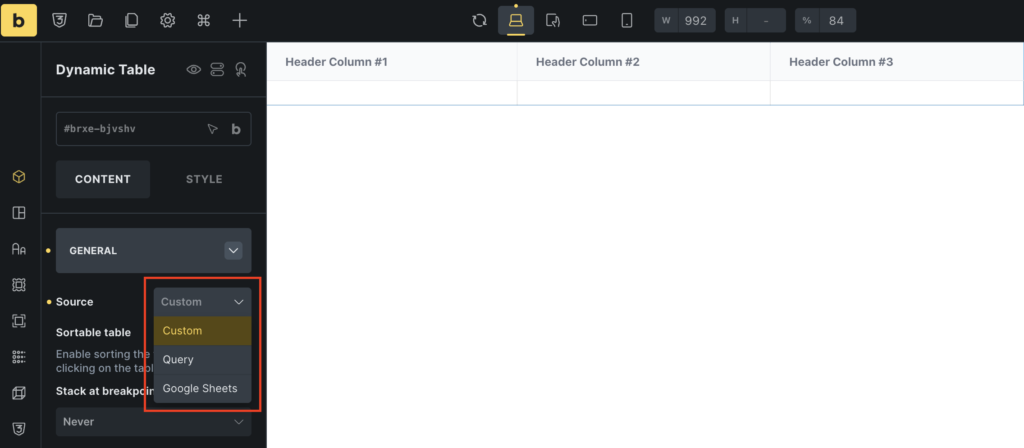
Let’s look at what each option does.
Custom Data
Choose Custom if you want to enter the table data manually.
For example, create a table with product names, prices, categories, and availability. You can add the column headings and enter the information for each row directly in the element settings.
You can use this feature to showcase small tables whose information does not change frequently.
WordPress Query
Choose Query if you want to pull information dynamically from WordPress.
A query retrieves content from your website based on the settings you configure. Depending on the available query options, you can use it to display content such as posts or other supported WordPress data.
This can be useful when you want the table to display information that already exists on your website.
For example, a resource directory could use a query to display relevant WordPress content rather than requiring you to enter every item manually.
Google Sheets
Choose Google Sheets if your table data is stored in a spreadsheet.
This can be helpful when you regularly update product information, event details, or other records in a spreadsheet and want to display that information on your website.
The exact setup depends on the available connection and data settings.
Which Data Source Should You Choose?
For this tutorial, we will use Custom because it is straightforward for beginners and lets us control the table data directly.
Select Custom from the Source dropdown.
If you are creating a searchable table with a WordPress query or Google Sheets, you can follow the same general process for enabling the search feature later in this guide.
Step 6: Add the Table Headers
The table headers describe the information displayed in each column. If we are creating a product directory, we might use these four columns:
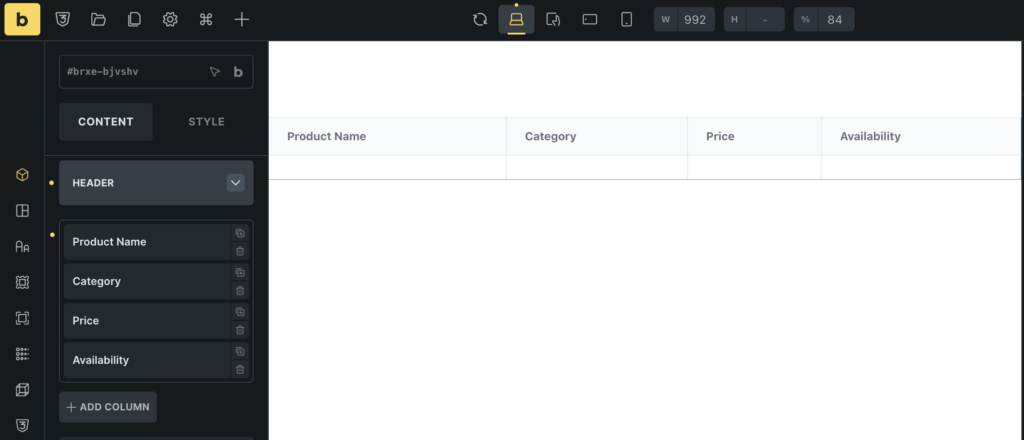
This is only sample data. You can replace it with information relevant to your website.
To configure the headers, open the Header section in the Dynamic Table settings.
By default, the element includes three header columns. You can edit these columns, add more, or remove the ones you do not need.
For each header column, you can configure settings such as:
- Text: Enter the column name, such as Product Name, Category, or Price.
- Icon Type: Add an icon next to the heading if you want to make it more visually interesting.
- Width: Set the column width to control how much space it occupies.
- Disable Sorting: If sorting is enabled for the table, use this option to prevent visitors from sorting a particular column.
- Attributes: Add custom attributes if you need them for an advanced use case.
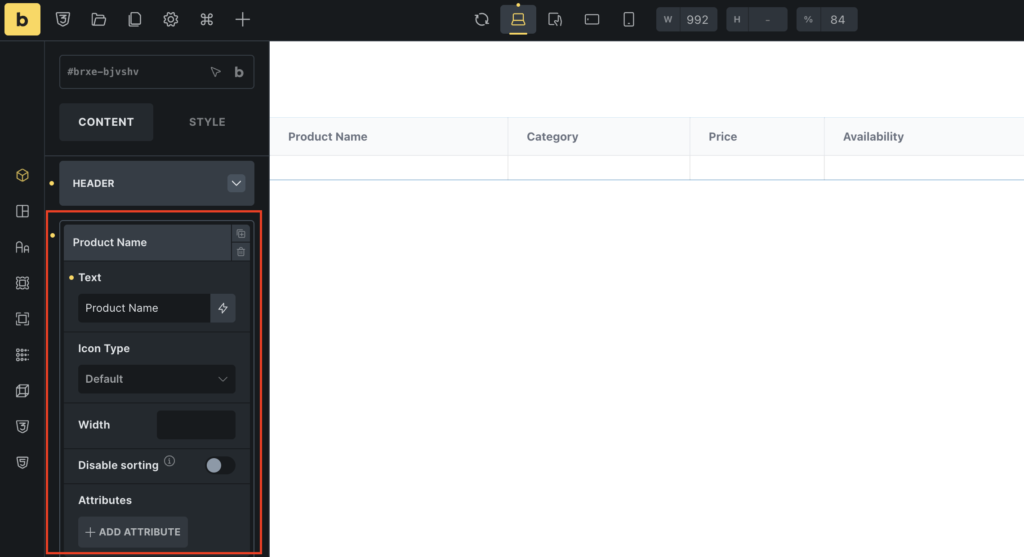
For our table, we will create four columns named Product Name, Category, Price, and Availability.
Keep the column names short and clear. Visitors should be able to understand what each column contains without having to guess.
Step 7: Add Rows and Enter Your Table Data
Once the headers are ready, it’s time to add the information visitors will search for.
Open the Body section in the Content tab.
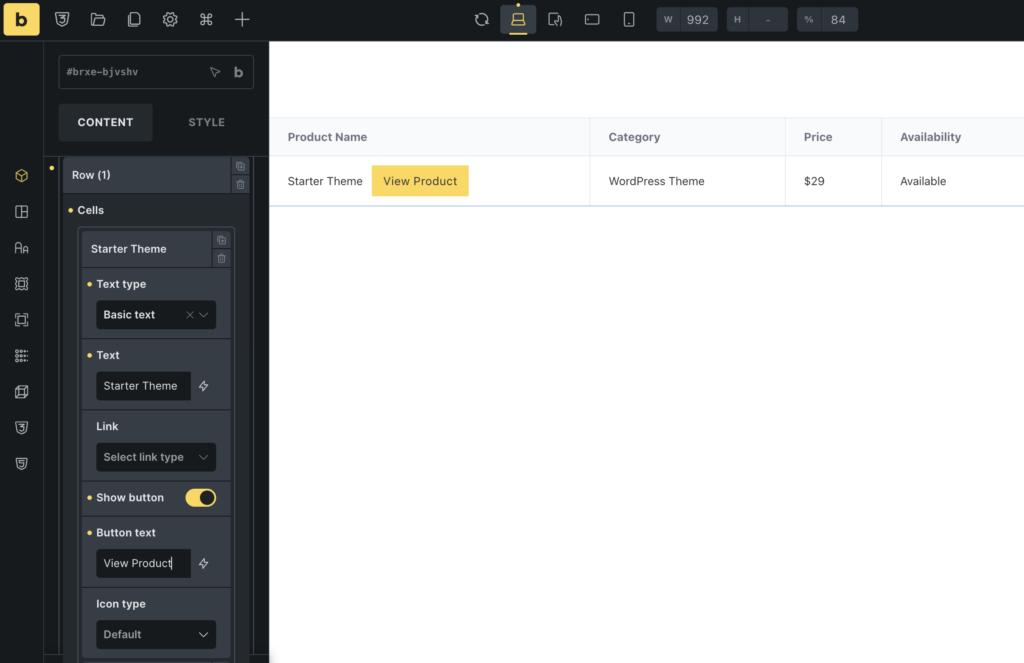
You will find a default row that you can edit. Each row contains cells that hold the information displayed under the corresponding headers.
The first row might contain:
- Product Name: Starter Theme
- Category: WordPress Theme
- Price: $29
- Availability: Available
To add more information, click + ADD ROW.
Open the row settings and use + Add CELL to add the cell content required for your columns. Repeat the process for each row, following the structure of your table.
Make sure the data matches the headers. If the first column is Product Name, enter the product name in that column for every row.
You can also configure additional cell options.
- Text Type: Choose the appropriate text type for the cell, such as plain text or HTML, depending on the available settings.
- Link: Add a link to an internal post or page, a taxonomy, media, a lightbox image, or an external URL, where supported.
- Show Button: Enable this option if you want to display a clickable button inside the cell.
- Icon Type: Add an icon to make specific information easier to recognize.
You could add a button labeled “View Product” that links to the product page.
For a searchable table, it is important to keep the information clear and consistent. Use the same format for prices, availability labels, and categories throughout the table.
You can start with a few rows while testing the table. Once everything works as expected, add the rest of your data.
Step 8: Enable the Search Form
This is the most important step in the tutorial.
Adding a table displays your information, but visitors still need a way to search through it. The Dynamic Table element includes a search form that you can enable from its settings.
In the Content tab, below the BODY section, you’ll find the SEARCH section. Click the section to open its settings options.
Look for the Search Form option and turn it on. A search field should now appear with your table, based on the element’s layout and styling settings.
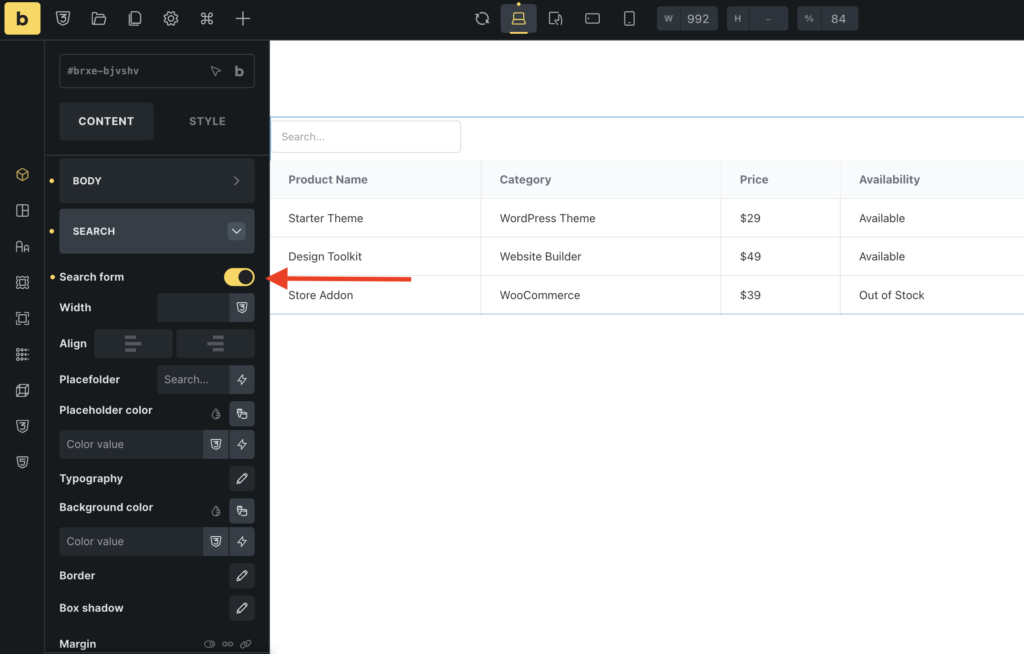
Visitors can use this field to enter a keyword and find matching information in the table. Suppose your table contains the following products:
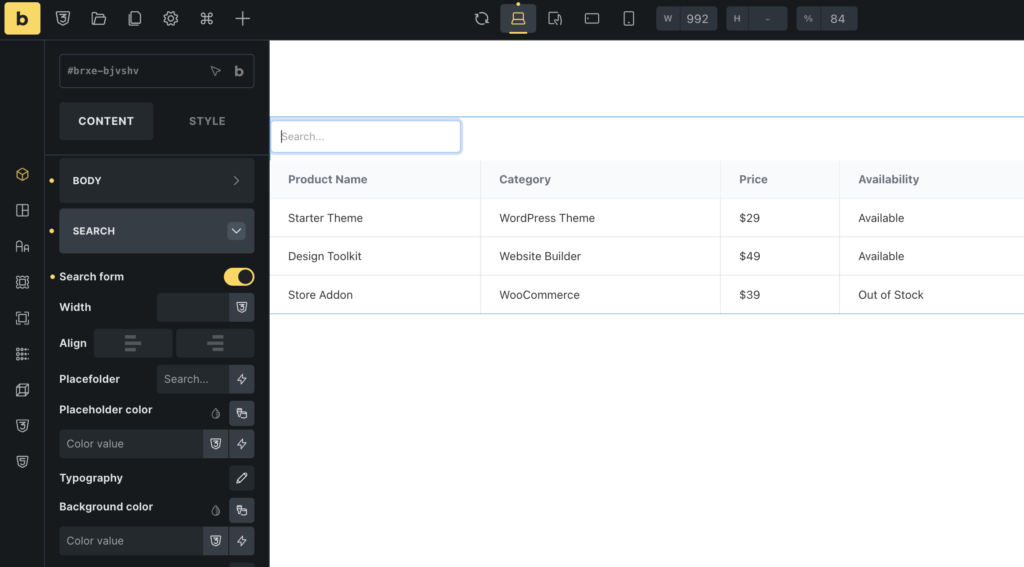
If a visitor types “WooCommerce” into the search box, the table can display the matching row containing “Store Addon”.
Similarly, searching for “Theme” can help visitors find the relevant theme entries.
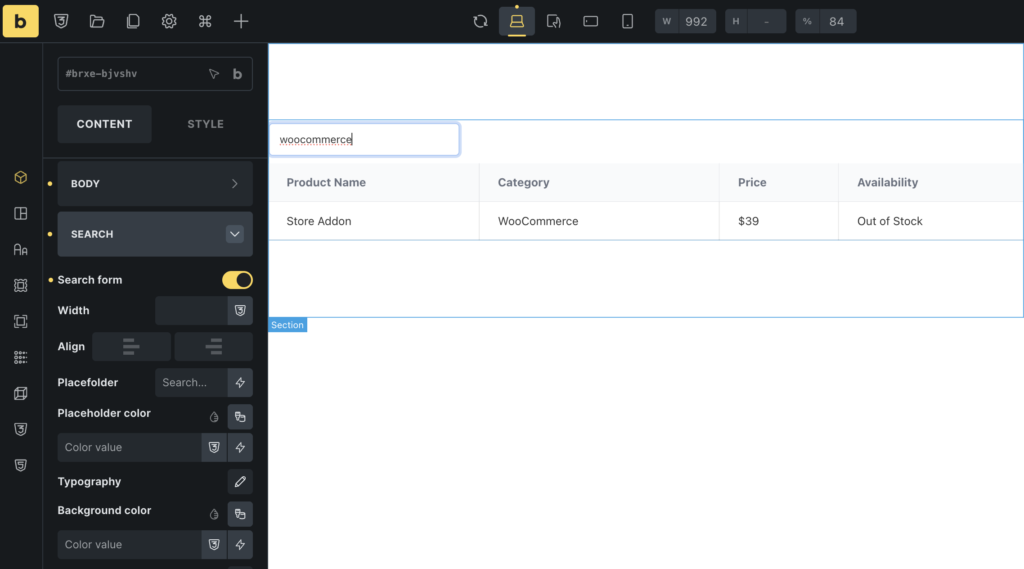
The search field makes it easier to work with a table that contains many rows. Visitors do not need to scan the entire table to find the information they want.
Customize the Search Field
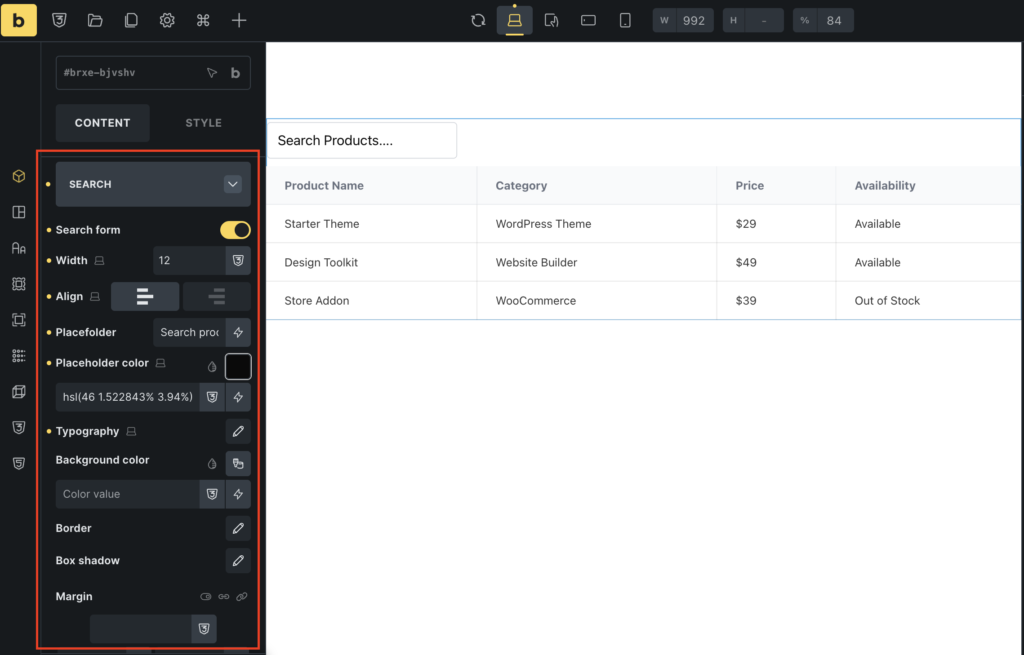
The Dynamic Table element also provides settings that let you adjust the search form’s appearance.
Depending on the available controls, you can customize the following:
- Width and Alignment: Adjust the search field’s width and position it where it fits best.
- Placeholder Text: Add a short message inside the field, such as Search products… or Find a course….
- Typography: Change the text style to match your website.
- Colors: Customize the text and background colors.
- Borders: Adjust the border style to fit your design.
- Margin and Padding: Control the space around the search field and the space inside it
For our product directory, we could use the placeholder text Search products….
Keep the search box easy to spot. It should look like an input field, not like an ordinary heading or decorative element.
Step 9: Enable Sorting for Your Table
A searchable table is already useful, but you can make it even more convenient by enabling sorting.
Sorting lets visitors rearrange table rows by clicking a column heading.
Your visitors might want to sort a product table by price to find the least expensive option first. They could also sort products alphabetically by name.
To enable this feature, open the General section of the Dynamic Table element settings. Find the Sortable table option and turn it on.
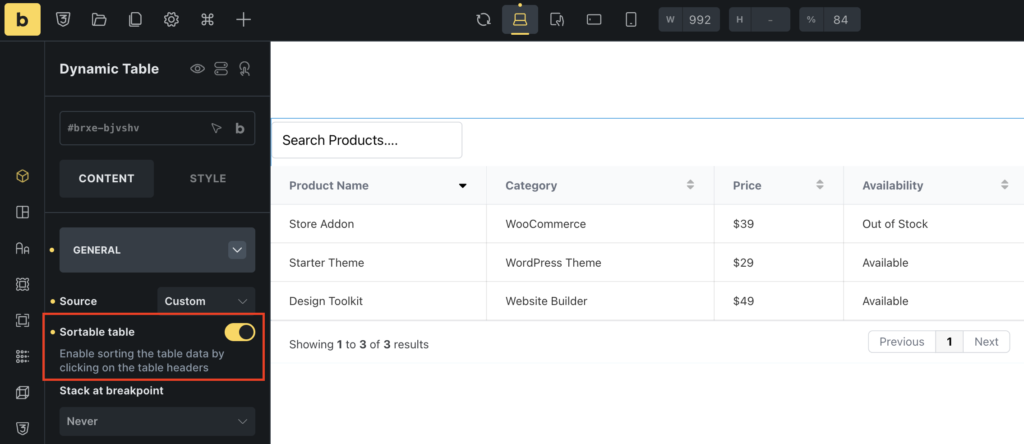
Once sorting is enabled, visitors can click supported column headings to rearrange the data. You can also disable sorting for individual columns using the settings in the Header section.
This is helpful when a column contains information that doesn’t sort meaningfully, such as action buttons or images.
Search and sorting serve different purposes. Search helps visitors find specific information, while sorting helps them arrange the information in a useful order.
These features can make your Bricks Builder tables easier to use.
Step 10: Enable Pagination for Large Tables
What if your table contains 100 or 200 rows?
Displaying every row at once can make the page long and difficult to navigate. This is where pagination helps.
Pagination divides a large table into smaller pages. Instead of showing all rows at once, you can display a limited number of rows and let visitors navigate between pages.
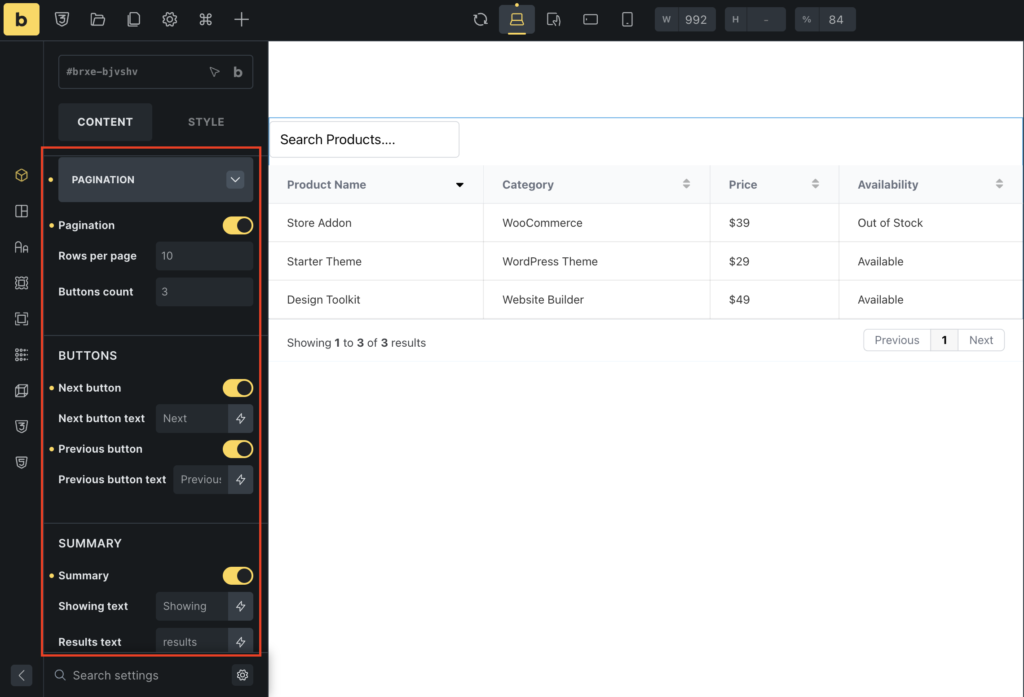
To enable it, open the Pagination section in the Dynamic Table element settings.
Turn on the Enable Pagination option.
You can then configure the available pagination settings.
- Rows Per Page: Decide how many rows should appear on each page. For example, you might display 10 rows at a time.
- Buttons Count: Choose how many page-number buttons appear at once.
- Next/Previous Buttons: Enable navigation buttons and customize their labels if the settings allow it.
- Summary: Display a message such as Showing 1–10 of 50 results to help visitors understand how much information the table contains.
For a product directory with 100 entries, showing 10 rows per page can make the table easier to browse.
Keep in mind that search and pagination work together as part of the table’s functionality. Test them with your actual data to ensure visitors can find results and navigate between pages as expected.
Step 11: Customize the Table Design
Your table now has headers, data, a search field, and optional sorting and pagination. The next step is to make it match the rest of your website.
Select the Dynamic Table element and open the Style tab.
The available styling controls may be organized into sections such as Header Style, Rows Style, Cells Style, Icon Style, and Button Style.
Let’s look at how you can use these options.
Header Style
The header is the first row of your table. It contains labels such as Product Name, Category, and Price.
Use the Header Style settings to adjust the header’s background color, text color, typography, borders, and spacing.
Choose colors that provide enough contrast between the text and background. This makes the headings easier to read.
Rows Style
The Rows Style section controls the appearance of table rows.
You can use it to create a consistent design throughout the table. For example, you might add a subtle background color to alternating rows to help visitors follow the information across the table.
Avoid using too many colors or decorative effects. The main purpose of a table is to present information clearly.
Cells Style
The Cells Style section lets you customize the individual cells in the table.
You can adjust typography, padding, borders, and other available design settings.
Give each cell enough space so the text does not look cramped. If your table contains long product names or descriptions, check that the columns have enough room.
Icon Style and Button Style
If you have added icons or buttons to your table, use the corresponding style sections to customize them.
For example, a View Product button should be easy to recognize and click. Use a clear label and make sure it stands out from the surrounding text.
Try to keep the design consistent with the rest of your Bricks Builder website.
A simple, well-organized table is usually more useful than one filled with unnecessary visual effects.
Step 12: Make the Table Responsive
Your website visitors may use desktop computers, tablets, or mobile phones. A table that looks good on a desktop screen might be difficult to read on a smaller device.
That’s why you should check how your table behaves on different screen sizes.
The Dynamic Table element includes a Stack at Breakpoint setting in the General section. It lets you control how the table behaves at different screen sizes.
Depending on your requirements, the available options include:
- Never
- Desktop
- Tablet Portrait
- Mobile Landscape
- Mobile Portrait
The right setting depends on your table layout and the amount of information you display.
For example, a table with four short columns may fit comfortably on a tablet, while a table with eight columns may need a different layout on smaller screens.
After choosing a breakpoint, preview the page at different screen sizes. Check that the headings, cells, search field, and pagination controls remain easy to use.
If the table contains a lot of information, consider simplifying the content or reducing the number of columns where possible.
A responsive table should help visitors find information without forcing them to struggle with tiny text or poorly arranged columns.
Step 13: Preview and Test Your Searchable Table
Before publishing your changes, test the table to make sure everything works as expected.
Open the page preview and try searching for a product name, category, or another value that exists in your table.
Check whether the expected rows appear. Try searching for a word that does not exist to see how the table handles an empty result.
You should also test the other features you enabled.
If sorting is active, click a column heading and check that the rows change order. If pagination is active, move between pages and confirm that the rows and page controls behave correctly.
Finally, test the page on a mobile screen.
Pay attention to the following details:
- Is the search field easy to find?
- Are the column headings clear?
- Can visitors read the cell content comfortably?
- Do the sorting and pagination controls work?
- Does the table fit the page layout?
Once everything looks good, save your changes in Bricks Builder and publish or update the page.
Your searchable table is now ready for visitors to use.
Tips for Creating Better Searchable Tables in Bricks Builder
Creating a searchable table is only part of the process. You should also think about how visitors will use it.
Here are a few practical tips to help you create a better experience.
Keep Your Table Organized
Use clear column headings and consistent formatting. If you are displaying prices, use the same currency format throughout the table.
If you have a product directory, arrange the information in a way that makes sense to visitors.
Add Only Useful Information
A table with too many columns can become difficult to read, especially on mobile devices.
Think about the information visitors need to make a decision. For a pricing table, this might include the plan name, price, key features, and a link to learn more.
You can explore our guide on how to create a pricing comparison table in Bricks Builder for more ideas.
Use Searchable Content Carefully
Make sure the text you want visitors to find is included in the table data.
For example, if visitors should be able to search by product category, include the category in a table cell. Do not rely only on an image or an icon to communicate important information.
Also, test the search behavior with your actual table data. The exact results depend on how the element handles searching and which data is available to it.
Use Pagination for Long Tables
If your table contains many rows, pagination can make the information easier to browse.
Choose a reasonable number of rows per page. Too few rows may force visitors to click through too many pages, while too many can make the table harder to scan.
Keep the Search Field Visible
Place the search field where visitors can find it quickly, usually above the table.
Use a descriptive placeholder such as Search products…, Find a course…, or Search resources….
This small detail helps visitors understand how to use the table without needing additional instructions.
Other Ways to Use Tables in Bricks Builder
Once you know how to create searchable tables, you can use the Dynamic Table element for many other purposes.
For example, you can create a table that lists WooCommerce products with details such as product names, prices, and availability. If you want to explore this use case, read our guide on how to create WooCommerce product tables with Bricks Builder.
You can also build resource directories, service lists, and product comparison tables.
If you are working on a long page with several sections, you might also want to add a table of contents so visitors can jump directly to the information they need. Check out our guide on how to create a table of contents in Bricks Builder.
These features serve different purposes, but they share one important goal: making your website easier to navigate.
Frequently Asked Questions
Yes. You can use the Max Addons Dynamic Table element for Bricks Builder to create a table and enable its search form through the element settings. You do not need to write custom code for the basic setup described in this tutorial.
Yes. The Dynamic Table element supports Google Sheets as a data source. You can use it to display spreadsheet data on your website, provided you configure the required connection and access settings.
Yes. You can choose the Query source to pull supported data dynamically from WordPress. This is useful when you want your table to display existing website content rather than entering every row manually.
Yes. You can enable the Sortable Table option in the General section. Visitors can then sort supported columns by clicking their headings. You can also disable sorting for individual columns.
Yes. Enable pagination and configure the number of rows displayed per page. You can also customize the page navigation controls and result summary using the available settings.
The Dynamic Table element includes a Stack at Breakpoint setting to control how the table behaves at different screen sizes. However, the best layout depends on your table’s content and design. Always preview and test the table on mobile devices before publishing it.
You can use the Dynamic Table element to display supported product data, depending on your query and configuration. If you are building a dedicated WooCommerce product table, review the relevant product-table setup and make sure the required product fields and search behavior work as intended.
Wrapping Up!
Searchable tables make it easier for visitors to find information on your website. Instead of scrolling through dozens or hundreds of rows, they can enter a keyword and quickly locate relevant results.
With the Dynamic Table element from Max Addons for Bricks Builder, you can create tables using custom data, WordPress queries, or Google Sheets. You can then enable search, configure sorting and pagination, customize the design, and adjust the layout for different screen sizes.
The process is simple to follow: activate the element, add it to your page, configure your table data, enable the search form, and test the result.
Ready to try it? Get Max Addons for Bricks Builder today and start creating searchable tables that help your visitors find what they need.
