Max Addons Slide Menu element for Bricks Builder helps you create interactive, space-saving navigation menus that slide in from any direction.
You can easily design off-canvas style menus for mobile navigation, side panels, or creative layouts without writing any code.
Getting Started#
Before you begin, make sure the following are installed and activated on your WordPress website:
How to Add the Slide Menu Element#
Follow these steps to add the Slide Menu to your page:
- Open an existing page or create a new one using the Bricks Builder editor.
- In the element search bar, type “Slide Menu”
- Add the element to your page.
- Check for the “MAX” label on the element.
Once added, you’ll see two main tabs:
- Content Tab
- Style Tab
Content Tab#
Content tab controls the functionality and structure of your slide menu. It includes the following sections:
- Menu
- Main Menu
- Sub Menu
- Arrow
- Back
Let’s go through each section in detail.
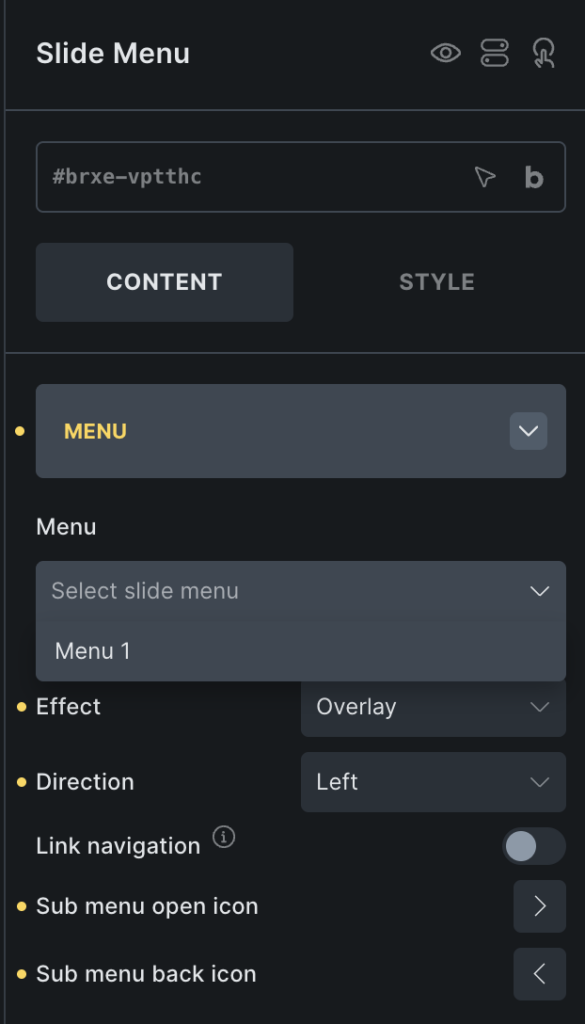
Menu#
- Menu: Select the WordPress menu you want to display.
- Effect: Choose how the menu appears: Overlay or Push.
- Direction: Choose where the menu slides in from: Left, Right, Top, or Bottom
- Link Navigation: Enable this option to have menu links redirect immediately when clicked. Disable it if you want users to open submenus first.
- Sub Menu Open Icon: Select an icon to indicate expandable menu items.
- Sub Menu Back Icon: Choose an icon for navigating back from submenus.
Main Menu#
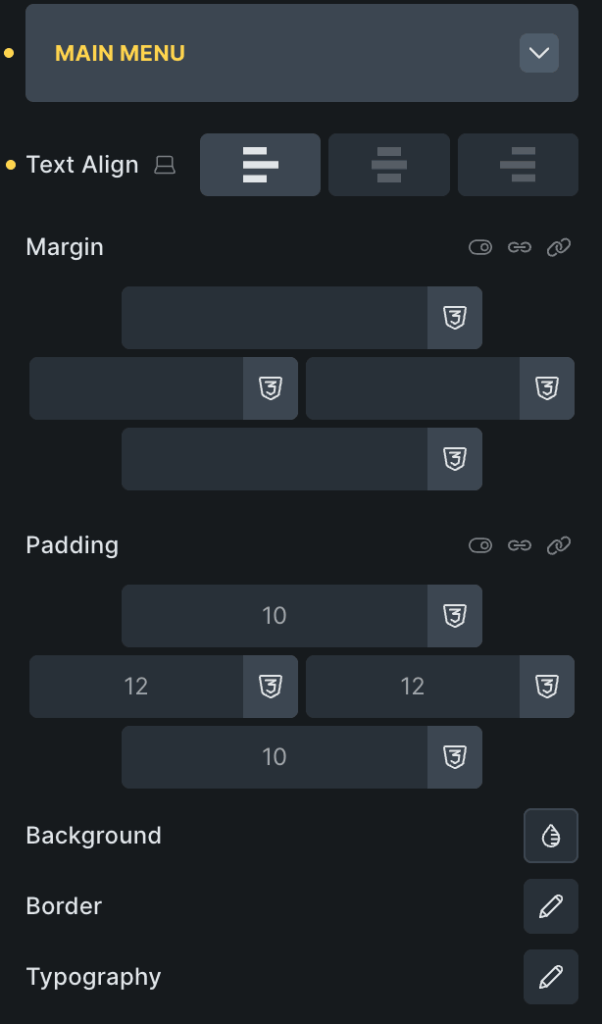
- Text Align: Align menu text: Left, Center, or Right
- Margin: Adjust the outer spacing around menu items.
- Padding: Control the inner spacing inside each menu item.
- Background: Set background color or gradient for menu items.
- Border: Add borders and control width, style, and color.
- Typography: Customize font family, size, weight, and color.
Sub Menu#
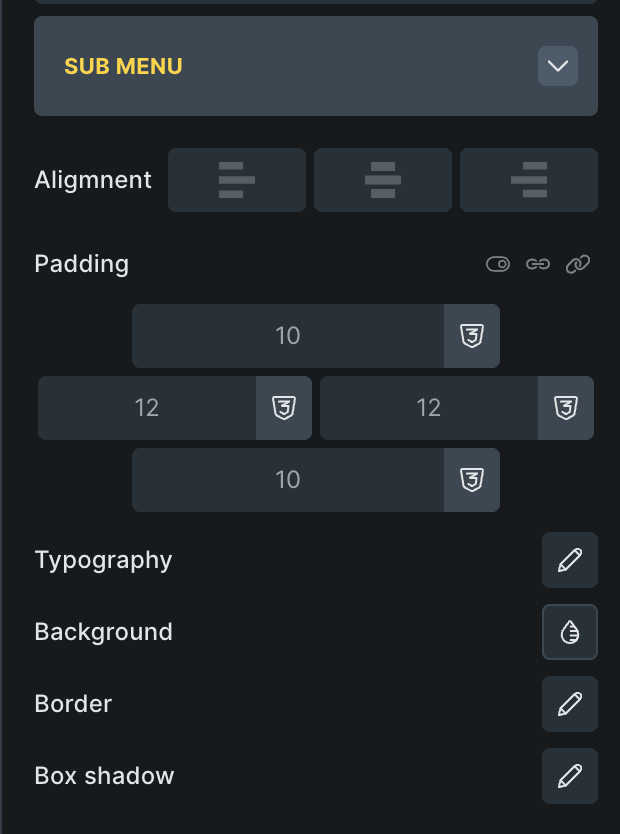
- Align: Set alignment of submenu text: Left, Center, or Right.
- Padding: Adjust spacing inside submenu items.
- Typography: Control font styling for submenu text.
- Background: Set background color for submenu items.
- Border: Add and customize borders.
- Box Shadow: Apply shadow effects to create depth and separation.
Arrow#
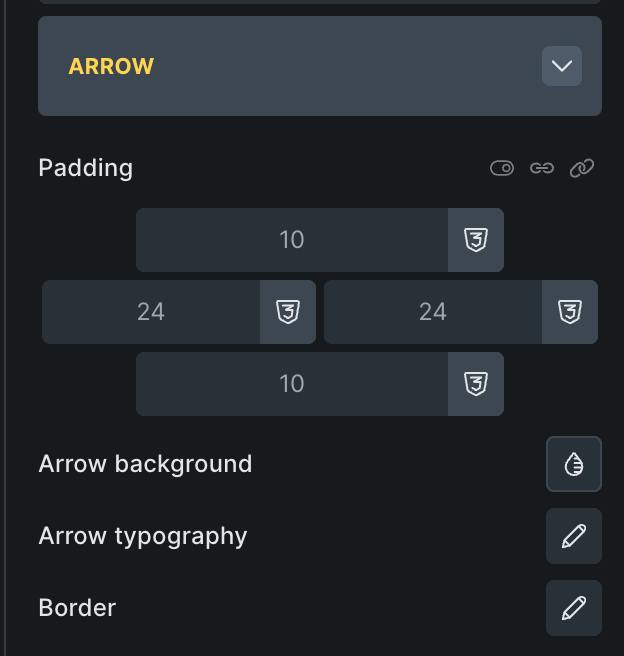
- Padding: Adjust spacing around the arrow icon.
- Arrow Background: Set the background color behind the arrow.
- Arrow Typography: Control the size and color of the arrow icon.
- Border: Add border styling to the arrow container.
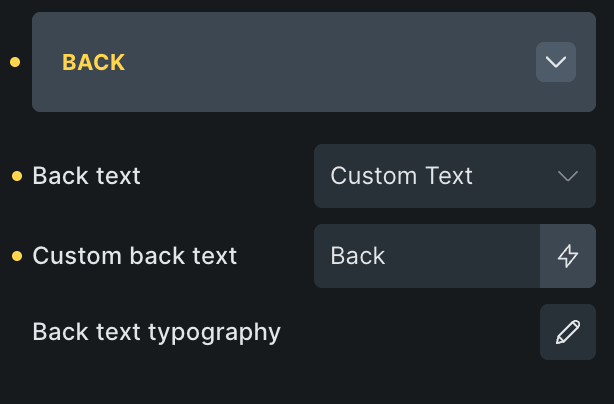
Back#
- Back Text: Choose how the back label appears:
- Custom Text: Enter your own label (e.g., “Go Back”)
- Parent Menu Item Label: Automatically shows the parent item name.
- Back Text Typography: Customize font size, style, and color of the back text.
Style Tab#
Style tab allows you to refine the overall appearance of the Slide Menu. You can adjust colors, spacing, typography, and other design elements to match your website’s look and feel.
When to Use the Slide Menu#
The Slide Menu element is useful for:
- Mobile-friendly navigation menus
- Off-canvas sidebars
- Fullscreen navigation layouts
- Multi-level menu structures
- Clean and minimal website designs