Form fields often require users to enter information in a specific format. Phone numbers, dates, times, credit card numbers, and currency values are a few common examples.
With Form Input Masks in Max Addons, you can guide users to enter information in the format you need. The mask is applied directly to the field, making data entry easier and helping keep your form submissions consistent.
Enable Form Input Masks#
Before adding an input mask to your form fields, make sure the feature is enabled in Max Addons.
- From your WordPress Dashboard, go to Bricks >> Max Addons.
- Open the Extensions tab.
- Under the Features section, find Bricks Form Input Masks.
- Turn on the Bricks Form Input Masks option.
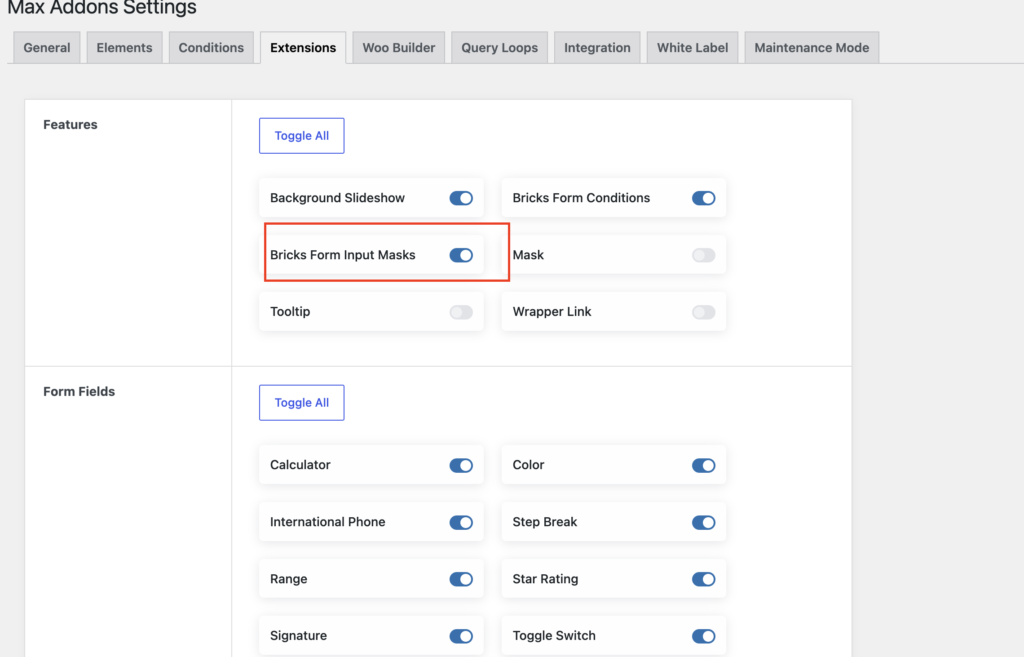
Once enabled, you can start adding input masks to your form fields in Bricks Builder.
Add an Input Mask to a Form Field#
To add an input mask to a field:
- Open the page in the Bricks Builder Editor.
- Add or select the Form element.
- Go to the Content tab.
- Click + Add Field to add a new form field.
- Select any form field, such as Telephone.
- Scroll down to find the Input Masks option.
- Choose the input mask you want to use.
You can choose from the following input mask types:
- None
- Phone
- Date
- Time
- Credit Card
- Currency
- Custom
Each mask type comes with its own settings to help you define how users should enter the information.
Choose the Right Input Mask#
Phone#
Use the Phone mask when you want users to enter phone numbers in a specific format.
After selecting Phone, you can define a Mask Pattern to control how the phone number should be entered.
For example, you can use a pattern that guides users to enter a phone number with the required country code, spaces, or other formatting.
Date#
The Date mask helps users enter dates in a consistent format.
After selecting Date, you can define the Date Format that should be used in the field. This is useful when your form requires dates in a specific format, such as day/month/year or month/day/year.
Time#
Use the Time mask when you want users to enter a time in a specific format.
After selecting Time, you can configure the available time format settings to match the format required by your form.
Credit Card#
The Credit Card mask helps guide users when entering card numbers.
It automatically applies the required formatting as users type, making it easier to enter long card numbers correctly and consistently.
Currency#
Use the Currency mask when your form collects monetary values.
The mask helps users enter currency amounts in a consistent format, making the submitted data easier to read and manage.
Custom#
Need a format that isn't covered by the available mask types? Use the Custom option.
With a custom mask, you can define your own Mask Pattern based on the type of information you want users to enter. This gives you more control over the format of your form fields.
Why Use Input Masks?#
Input masks can make forms easier to complete and help keep submitted data consistent. Instead of asking users to remember a specific format, the field guides them as they type.
For example, you can use input masks to:
- Keep phone numbers in a consistent format.
- Guide users when entering dates and times.
- Make long numbers easier to enter.
- Keep currency values formatted consistently.
- Create custom input formats for specific requirements.
With Form Input Masks, you can make your Bricks forms easier to fill out while collecting cleaner, more consistent data.
Combine Form Conditions With Input Masks#
Want to make your forms even more flexible? You can combine Form Conditions with Input Masks to create forms that show the right fields and guide users to enter information in the right format.
For example, let's say you're creating a service booking form. You can ask users to choose the service they need and then show additional fields based on their selection.
Create a Dynamic Booking Form#
Start by adding fields such as:
- Choose a Service
- Name
- Phone Number
- Preferred Date
- Preferred Time
You can then use Form Conditions to show additional fields based on the selected service.
For example, if a user selects Website Development, display a Project Details field. If they select Website Maintenance, you can show a Website URL field instead.
Next, use Input Masks to control how users enter specific information:
- Apply the Phone mask to the Phone Number field.
- Apply the Date mask to the Preferred Date field.
- Apply the Time mask to the Preferred Time field.
This way, Form Conditions control which fields users see, while Input Masks guide how they enter the information.
By combining both features, you can create forms that feel more personalized, are easier to complete, and collect more consistent data.